

Step-by-Step Guide to Setup Headless WordPress with Next.js, GraphQL & Faust (Hostinger + Vercel)
Meta Description
Learn how to build a high-performance headless WordPress CMS using Next.js, GraphQL, and Faust.js. Complete step-by-step tutorial with Hostinger hosting and Vercel deployment.
Target SEO Keywords
- Headless WordPress with Next.js
- WordPress GraphQL tutorial
- Faust.js WordPress setup
- Next.js headless CMS tutorial
- Hostinger WordPress headless setup
- WordPress + Vercel deployment
- GraphQL WordPress API tutorial
- Next.js WordPress frontend
- modern WordPress architecture
- WordPress decoupled CMS setup
Introduction
Modern websites require high performance, flexibility, and scalability. Traditional WordPress themes sometimes limit developers when building fast frontend experiences.
This is where Headless WordPress architecture becomes powerful.
In a Headless setup, WordPress works only as the CMS backend, while the frontend is built using modern frameworks like Next.js. Data is fetched using GraphQL, and Faust.js simplifies the integration between WordPress and Next.js.
In this tutorial, you will learn how to build a production-ready Headless WordPress setup using Hostinger, GraphQL, Faust.js, and Vercel.
This setup is widely used in modern web development because it offers:
- Faster page loads
- Better SEO performance
- Modern React frontend
- Scalable architecture
- Separation of frontend and backend
Architecture Overview
Before starting, let's understand the architecture.
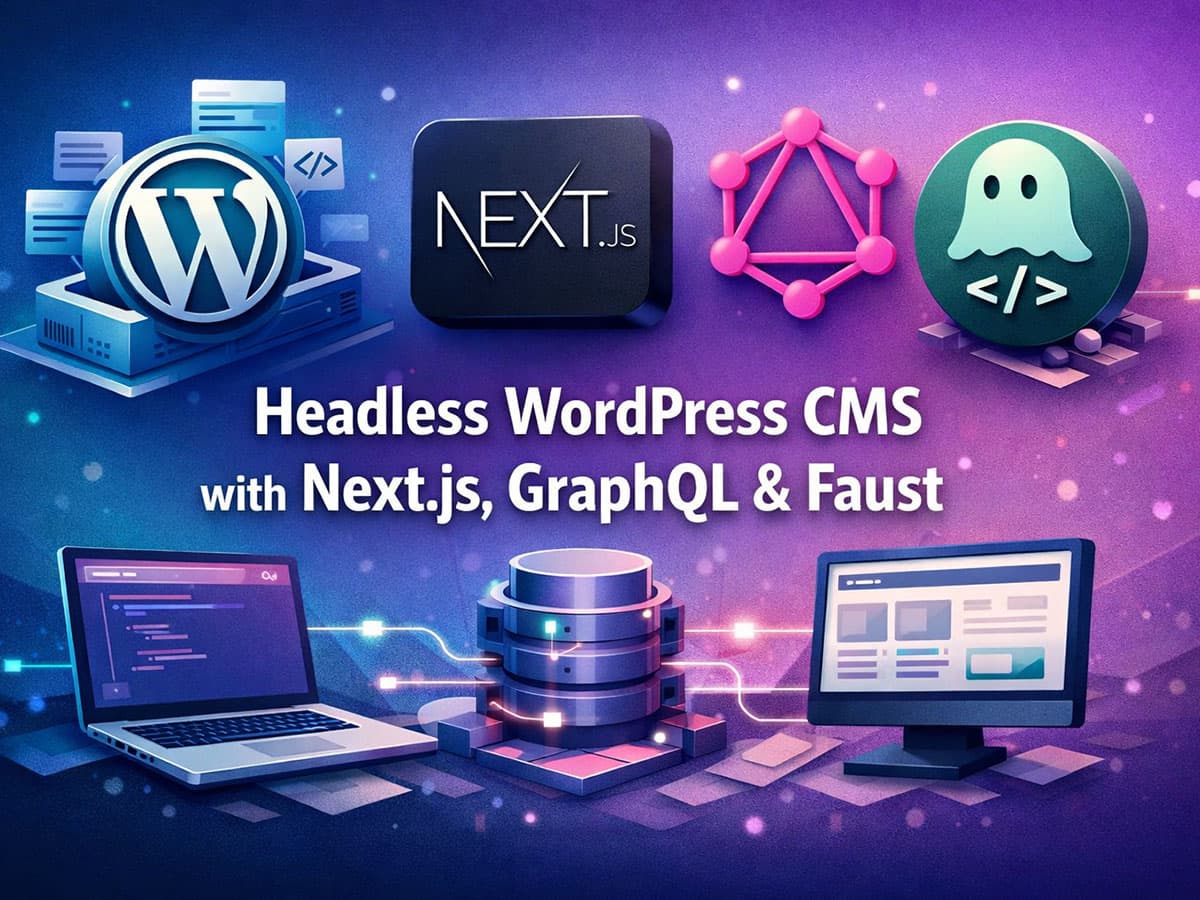
WordPress (Hostinger) → GraphQL API → Next.js Frontend (Faust.js) → Vercel Hosting
Components used in this setup
Backend
• WordPress installed on Hostinger
• WPGraphQL plugin
Frontend
• Next.js framework
• Faust.js integration
Deployment
• WordPress → Hostinger
• Next.js → Vercel
Step 1: Install WordPress on Hostinger
First, you need a WordPress installation that will act as the CMS backend.
Steps
- Login to Hostinger hPanel
- Go to Websites
- Click Auto Installer
- Select WordPress
- Choose your domain
- Complete installation
After installation, open:
yourdomain.com/wp-admin
Now your WordPress backend is ready.
Step 2: Install Required WordPress Plugins
For Headless WordPress, GraphQL API access is required.
Go to Plugins → Add New and install:
Required Plugins
WPGraphQL
This plugin creates a GraphQL API endpoint for WordPress.
FaustWP
This plugin connects WordPress with Faust.js frontend.
Install Steps
- Go to Plugins
- Search WPGraphQL
- Install and activate
- Search FaustWP
- Install and activate
Step 3: Test the GraphQL Endpoint
After activating WPGraphQL, WordPress automatically creates a GraphQL endpoint.
Open this URL:
https://yourdomain.com/graphql
You should see the GraphQL playground.
Test query:
{
  posts {
    nodes {
      title
      slug
    }
  }
}
If this returns posts, the API is working correctly.
Step 4: Install Node.js Environment
To build the frontend using Next.js, install Node.js.
Check installation:
node -v
If not installed, download from:
https://nodejs.org
Node.js is required to run the Next.js application.
Step 5: Create the Next.js + Faust Project
Faust.js provides an official starter for WordPress headless sites.
Run this command:
npx create-next-app -e https://github.com/wpengine/faustjs/tree/canary/examples/next
Or install Faust CLI:
npm init faust@latest
Then enter your WordPress URL.
Example:
https://yourdomain.com
Faust will automatically configure:
- Next.js frontend
- GraphQL integration
- WordPress authentication
- Routing system
Step 6: Configure Environment Variables
Inside the Next.js project, create a file:
.env.local
Add your WordPress backend URL.
Example:
NEXT_PUBLIC_WORDPRESS_URL=https://yourdomain.com
FAUST_SECRET_KEY=your-secret-key
Also configure the same secret key inside WordPress Faust plugin settings.
This secures communication between WordPress and the Next.js frontend.
Step 7: Run the Local Development Server
Start the development server.
npm run dev
Open:
http://localhost:3000
You should now see your WordPress posts rendered in the Next.js frontend.
Faust automatically pulls content using GraphQL.
Step 8: Deploy the Next.js Frontend on Vercel
Next.js works perfectly with Vercel.
Deployment Steps
- Go to Vercel
- Login with GitHub
- Push your project to GitHub
- Import repository into Vercel
- Add environment variables
Add this variable inside Vercel settings:
NEXT_PUBLIC_WORDPRESS_URL=https://yourdomain.com
Now click Deploy.
Your frontend will be live on:
yourproject.vercel.app
Step 9: Connect Custom Domain (Optional)
To use your main domain for frontend:
- Add domain in Vercel
- Update DNS records in Hostinger
Recommended setup:
Frontend → Vercel
Backend → WordPress (Hostinger)
Example:
Frontend: www.yourdomain.com
Backend: cms.yourdomain.com
This separation is considered industry best practice for headless WordPress.
Benefits of Headless WordPress Architecture
Using WordPress as a headless CMS provides several advantages.
Performance
Next.js static generation makes pages extremely fast.
Better SEO
Fast load times and optimized React rendering improve rankings.
Security
WordPress backend is isolated from the public frontend.
Developer Flexibility
Developers can build modern interfaces using React and APIs.
Scalability
Frontend and backend can scale independently.
Best Practices for Production
To build an industry-standard headless setup:
• Use Next.js Incremental Static Regeneration (ISR)
• Cache GraphQL queries
• Use CDN for assets
• Secure WordPress API
• Separate CMS domain from frontend domain
• Enable image optimization in Next.js
These practices significantly improve performance and SEO.
Final Thoughts
Headless WordPress is quickly becoming the future of modern web development.
By combining:
- WordPress (CMS)
- GraphQL (data layer)
- Next.js (frontend framework)
- Faust.js (integration layer)
- Vercel (deployment platform)
you get a fast, scalable, and developer-friendly website architecture.
This setup is ideal for blogs, content platforms, and high-traffic websites that require both WordPress content management and modern frontend performance.











Responses (0 )